Sweep
The native macOS app uninstaller that removes every trace, right down to the leftovers other uninstallers forget.
macOS 13+ · free & open-source · how to open it on first launch →
The native macOS app uninstaller that removes every trace, right down to the leftovers other uninstallers forget.
macOS 13+ · free & open-source · how to open it on first launch →
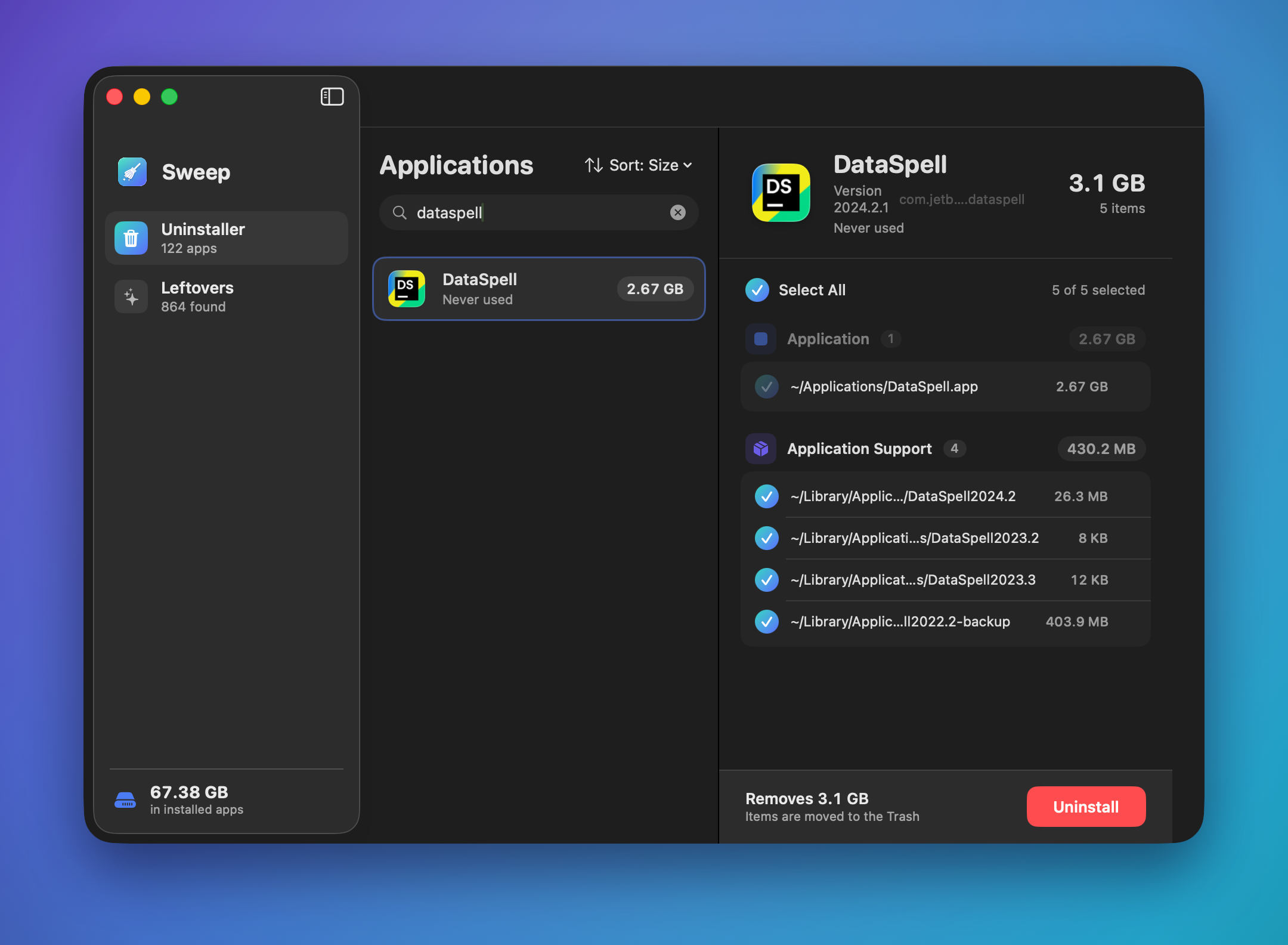
Pick an app and Sweep finds its caches, preferences, containers, logs, saved state, cookies and login items, all grouped and ticked ready to go.
It reaches into versioned vendor folders like JetBrains/DataSpell2024.2, and it's careful enough not to grab an unrelated app's data.
Digs up orphaned files from apps you've already deleted, grouped by app so you can expand a group and see what's there.
Lists the biggest files in your home folder, over a size you pick. It skips ~/Applications and ~/Library, so it never offers you an app or its data. Nothing is ticked by default.
Files go to the Trash, so you can put them back if you change your mind, and nothing phones home. The one exception is the administrator step you have to approve yourself, which deletes for good.
If macOS blocks a file, Sweep names it and says why, instead of quietly leaving it in the list.
Plain SwiftUI. Search and sort your apps by size, name or last used without waiting around.
MIT licensed. Build it yourself, or grab the release and run it.
Sweep is open source and isn't signed with a paid Apple Developer ID, so macOS Gatekeeper blocks it the first time you open it. Once you've dragged Sweep into your Applications folder, do one of these. You only have to do it once.
Option A: Terminal (quickest)
Then open Sweep normally from Launchpad or Applications.
Option B: System Settings